
For Chrome, Edge & Chromium browsers
See what the browser did, then prove it without leaking a token
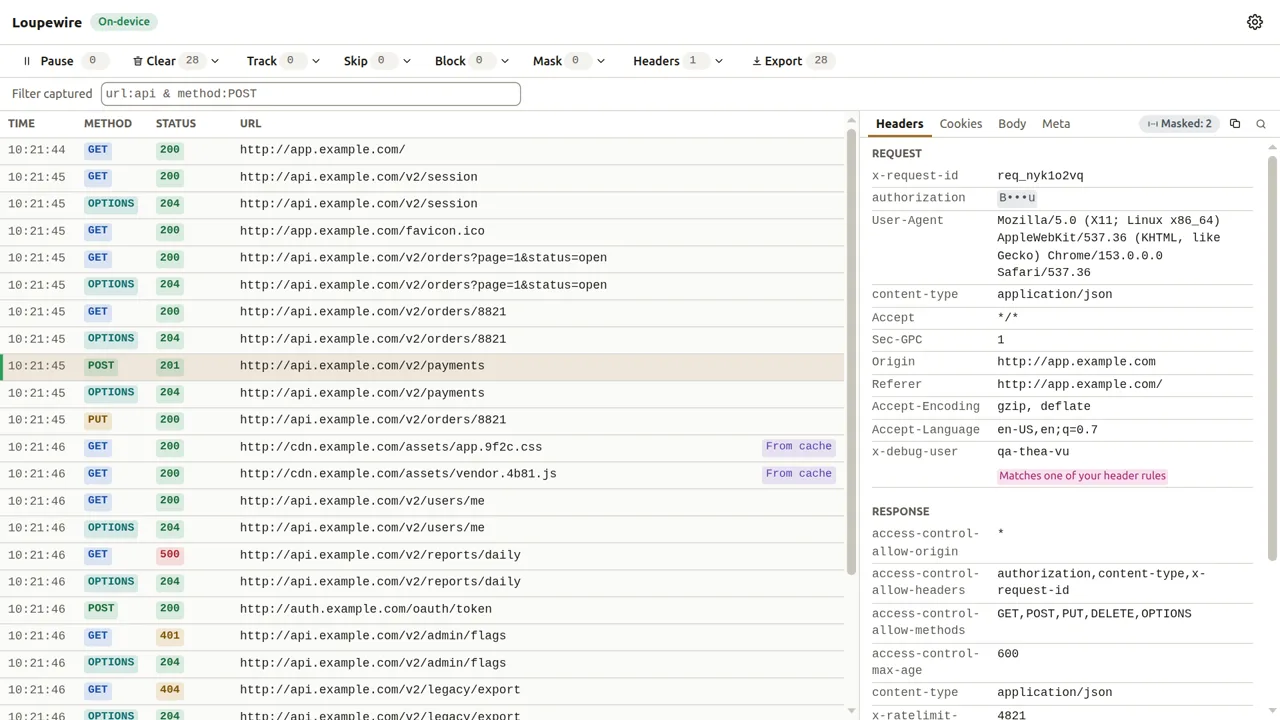
Loupewire captures the HTTP traffic of every tab in one window, masks secrets on screen and in the file, and exports a HAR you can attach to a ticket. Nothing leaves your device.

Listed on the Chrome Web Store and Edge Add-ons
- Free to use
- No signup
- Captured traffic never leaves the browser
-
Every tab, one window Popups and redirects included
-
Masked on screen and in the file A preset is on from the first request
-
No proxy, no certificate Nothing to install beyond the extension
-
HAR or JSON export The capture, the filtered rows or the selection
36 seconds, no narration
Attach a HAR to a ticket without leaking tokens
Every tab in one window, a token masked before it reaches the screen, a HAR with the masking baked in, a header rule applied to live traffic, a redacted cURL on the clipboard. The traffic comes from a local server; nothing in frame is anyone's real data.
From bug reproduced to ticket attached
One window for the whole path
A bug report has five steps. Loupewire lands on each one, and the fourth is the reason it exists.
-
Reproduce
Set up the request
Add or set a request header for every URL that matches a pattern: a token for staging, a feature flag, a tenant. Block an endpoint to see how the page copes without it.
How header rules work -
Observe
See the whole flow
Every tab, popup and redirect lands in one table. A login that bounces through three hosts reads as one list, not three DevTools windows.
Your first capture -
Isolate
Find the failing request
Track or skip URLs while capturing. Filter by URL, method, status, date and cache state with
How filtering works&and|. Pause, find text inside a request, clear the noise. -
Evidence
Hide the secrets, keep the proof
Tokens and cookies are masked before they reach the screen and before they reach the file. Export the capture, the filtered rows or the selection as HAR or JSON.
Export and copy -
Return
Pick up where you left off
Saved sessions and environment profiles are on the way, so tomorrow's ticket starts from today's setup.
Why Loupewire
Masked before the file exists
Masking at the source
A HAR file is a credential: the tokens inside it are live. Sanitizers clean a file after it exists. Loupewire masks values on screen and in every export before a file exists, so a screenshot and a HAR are both safe to attach without a second pass. A built-in preset covers the usual secret-bearing headers and cookies out of the box.
Mask and the secret preset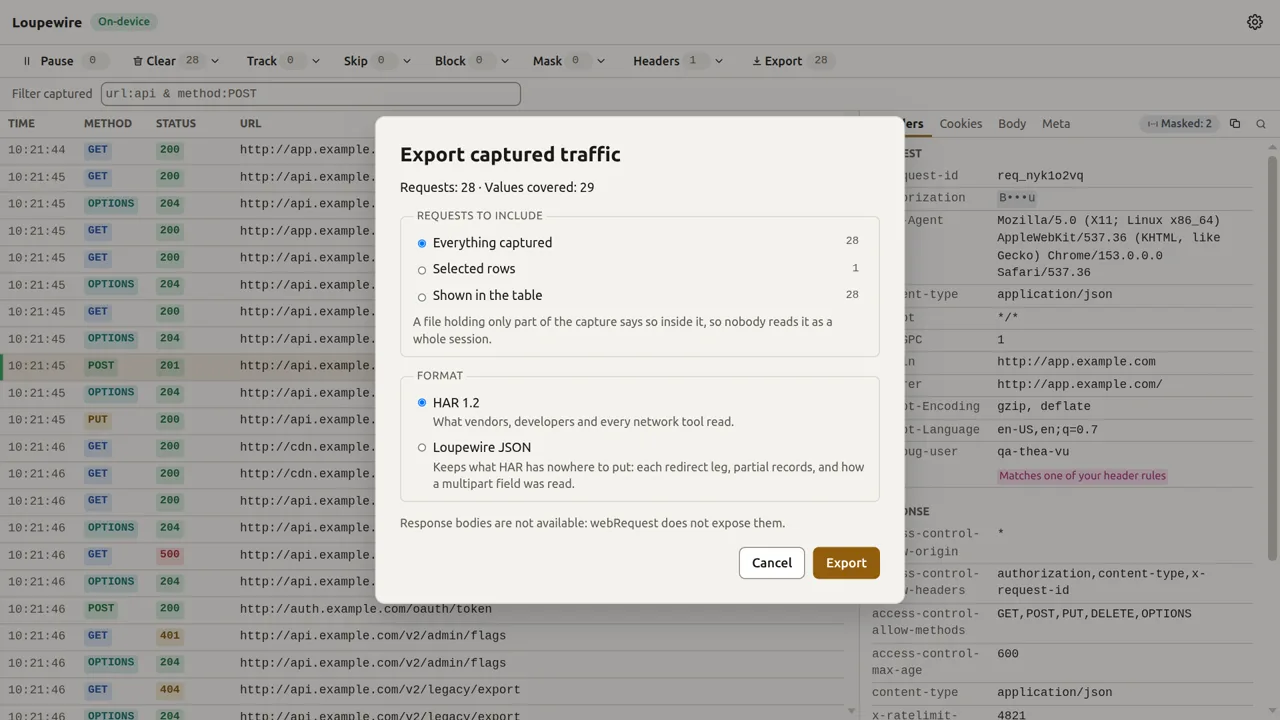
Every tab in one window
DevTools is per tab and forgets on navigation unless you remember to preserve the log. Flows that cross tabs, such as SSO, OAuth, 3-D Secure and vendor checkout, are exactly the ones you are asked to document. Loupewire records all of them in one tracker window you can leave open all day.
Track and skip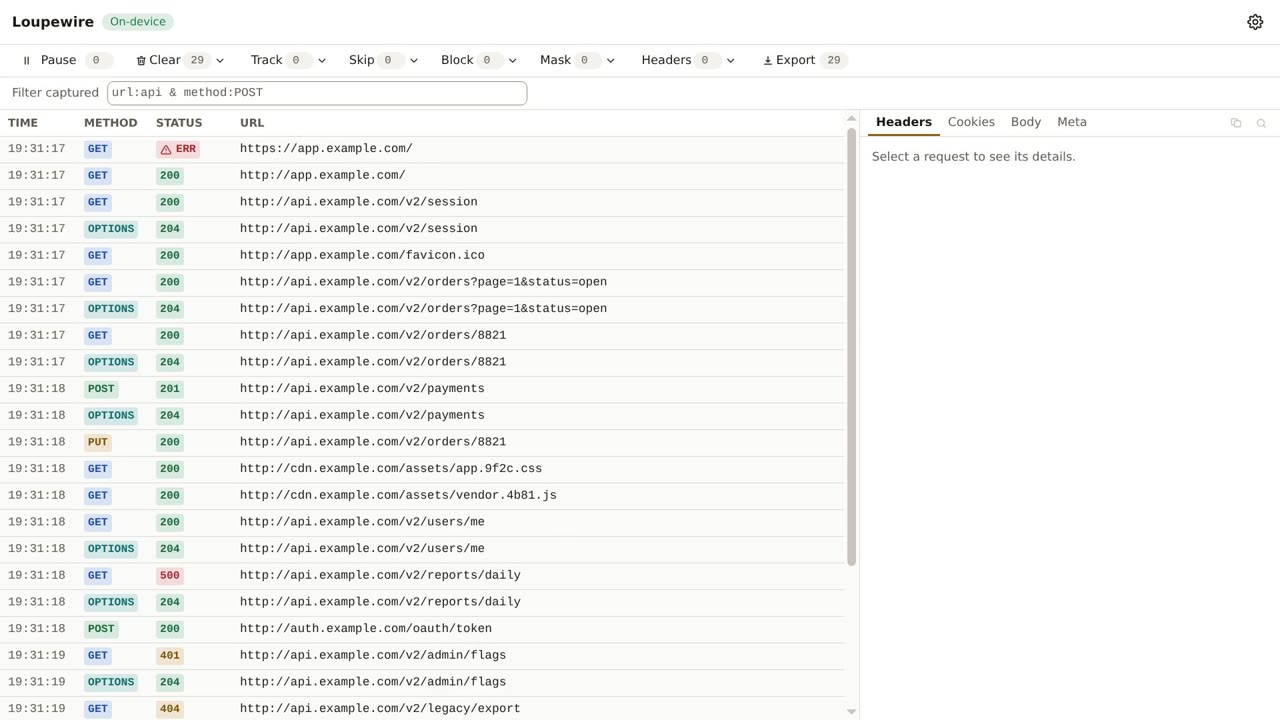
Where it fits
Next to DevTools, not instead of it
DevTools is the right tool for a breakpoint or a performance profile. Loupewire is for the evidence you hand to someone else.
| DevTools Network panel | Loupewire | |
|---|---|---|
| Traffic from every tab and popup | One tab per DevTools window | Every tab in one tracker window |
| Requests after a navigation | Kept when Preserve log is on | Kept while the tracker is open |
| Tokens and cookies on screen | Shown as sent | Masked before they render |
| Your own mask patterns in the export | Not available | Masked HAR or JSON |
| Console, debugger, performance | Yes | No |
Privacy
On your device, and only there
Everything runs in the browser. Captured headers, cookies, bodies and URLs stay in the tracker window and are never written to disk unless you export them. The extension makes no network requests of its own. No telemetry, no analytics, no crash reporting, no account.
- Captured traffic lives in the tracker window's memory and is gone when it closes
- Your patterns, rules and settings stay in the browser's local extension storage
- The privacy policy says the same thing in more words
Questions people ask first
The short answers. For anything else, the support page says where to ask.
Do I need an account?
No. Install it, press Ctrl+Shift+1, and the tracker opens. There is nothing to sign up for.
Does it show response bodies?
Not in the current version. Exports contain request and response headers, cookies, request bodies, timing and redirects.
Does anything leave my machine?
Nothing from the extension. It makes no network requests of its own. This website uses Google Analytics to count visits; the extension does not, and the privacy policy keeps the two apart.
Which browsers?
Chrome, Edge and other Chromium browsers.
How is it different from DevTools?
DevTools shows one tab and shows raw tokens. Loupewire shows every tab in one window and masks tokens before you see them. Use both: DevTools for the console and debugging, Loupewire for the evidence you attach.
Can I use it on a company laptop?
That is what it is for. It needs no system proxy, no root certificate and no admin rights, only the extension permissions the store shows you. Follow your employer's policy on what you attach to tickets.
What does "masked" mean, exactly?
A masked value shows its first and last characters and hides the rest, on screen and in every export. Masking is a display transform; the extension keeps no copy of the value anywhere.
Where do I report a bug or ask a question?
In the public loupewire-support repository on GitHub. Attach a masked export, say which browser and version, and describe what you expected.
The next ticket can carry the evidence without the credentials
-
Add it to your browser
From the Chrome Web Store or Edge Add-ons. There is no account to create.
-
Open the tracker
Press Ctrl+Shift+1, or click the toolbar icon. It opens in its own window and captures every tab.
-
Reproduce, then export
The secret preset is on from the first request. Export the capture, the filtered rows or the selection.
Listed on the Chrome Web Store and Edge Add-ons
For Chrome, Edge & Chromium browsers